
Safepoint has launched advanced member management in the Safepoint Lone Worker Management Portal, a big step up in what administrators can see and manage for each member of their workforce.
There is a great deal more on the member page than there used to be. A member’s teams, their app and notification settings, their emergency information and the devices they are signed in on now all sit alongside their profile.
Administrators can now onboard, manage and update an individual member entirely from the portal, without asking the worker to change anything in the app themselves.
A member’s details can now be edited straight from their member page. A misspelled surname, a new phone number, a change of company role or an update to the licence they hold are all handled there, along with their profile picture.
Below that is every team the member belongs to. Their role in each one can be changed from the same panel, or they can be removed from a team altogether, so managing someone who sits in five teams no longer means opening five teams.
Workers who cover several sites or rotate between crews are the ones whose records drift out of date fastest, because keeping them current used to mean remembering everywhere they appear.
This is the change we are most pleased with. The member page lists every device that person is signed in on, whether they are a lone worker or a guardian, showing which phone it is, the version of the app on it and when it was last used. A device that has not been seen for weeks is usually someone who has changed phone and never mentioned it.
Alongside that, administrators can see which permissions the app has actually been granted, and Safepoint flags anything that is not right.
Questions that used to mean asking a worker to go into their settings and read them out can now be answered from the portal. If someone’s location is not reporting as expected, you can check whether location permission was granted properly. If a panic alarm is not triggering, you can check whether Bluetooth permission was allowed. If a guardian thinks they are missing alerts, you can check whether critical alerts are enabled on their phone, which is what lets Safepoint task reminders through Do Not Disturb.
For an IT team or a manager rolling the system out, that is a lot quicker than talking someone through their own phone’s settings.
It also helps with false alarms. If a worker never sees their task reminder, the task times out and raises an alarm when nothing was wrong. Administrators can now check that a worker has their notifications set up correctly, which is a direct way to reduce the number of false alarms an organisation raises.
On self-monitored plans it matters at the response end too. A guardian whose notifications are not set up properly might not see an alert when it arrives.
Administrators can now view and edit a member’s description, medical information and next of kin from the portal. Previously this was the lone worker’s job, done in the Safepoint lone worker app.
Emergency details can be kept in line with whatever records an organisation already holds, updated centrally as things change. On an initial rollout, an administrator can also fill them in on behalf of their workers, which takes a job off every member and gets a new team up and running faster.
When an alarm is raised, this is the information a guardian sees alongside the worker’s live location. A medical condition such as diabetes, or the registration of the vehicle someone is out in that day, can make a real difference to how a responder handles it. All of it can now be entered and kept up to date centrally.
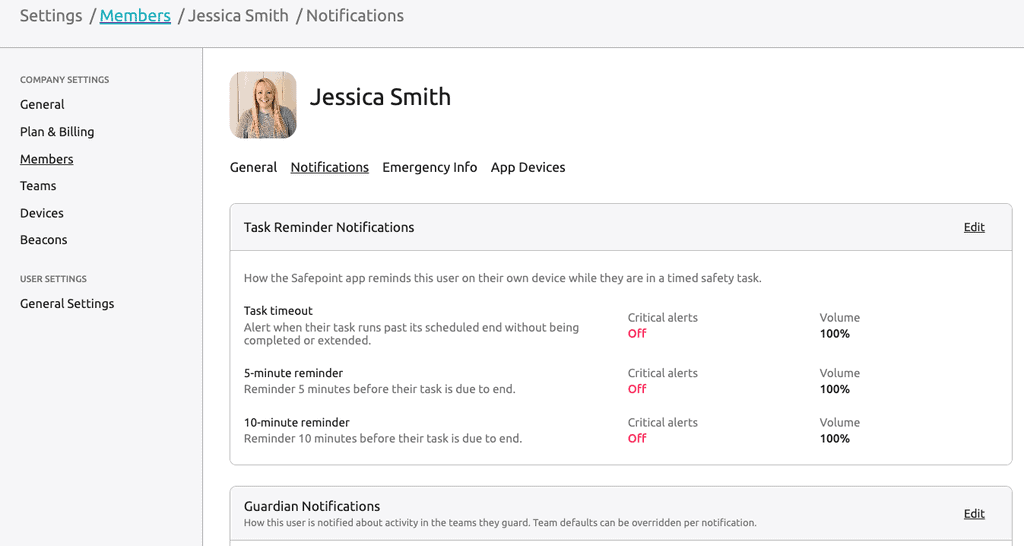
Notification settings can now be handled from the portal rather than on the worker’s phone. If someone works somewhere noisy and keeps missing their reminders, an administrator can turn the volume up for them. If they keep their phone on silent, an administrator can turn on critical alerts for them. The worker gets a prompt in the app to allow it, since that one has to be granted on the phone itself, and the portal then shows whether they have. The five and ten minute warnings before a task times out can each be enabled or disabled independently, with their own volume and critical alert settings.
Power mode is there as well. Putting a member on low power reduces the rate at which their location is tracked in the background during a task, which is worth doing for anyone on a long shift with nowhere to charge. Their time zone sits alongside it, either left on automatic detection or set explicitly, along with whether their clock runs on 12 or 24 hours. Both are useful for teams working across more than one region.
Advanced member management is now live for all customers in the Safepoint web portal.


